-1.png?width=150&height=56&name=logotype_lanterna_education_blue%20(4)-1.png)
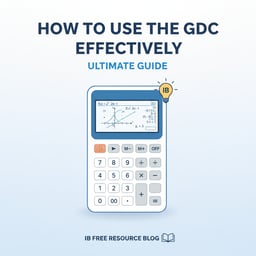
How to use the GDC effectively: Ultimate Guide
Master your IB Math AA/AI Paper 2 with this GDC guide. Learn 5 essential calculator functions (TI-84/NumWorks) like finding intersections and probability distributions to save time and score higher.
How to Use the GDC Effectively: The Ultimate Guide for IB Math AA/AI Paper 2
As former IB graduates and experienced tutors, we've seen firsthand how a well-mastered Graphic Display Calculator (GDC) can transform your IB Math Paper 2 performance. This isn't just about punching numbers; it's about leveraging a powerful tool to save precious time, minimize errors, and ultimately secure those higher marks.
This guide will equip you with the insider knowledge to make your GDC an extension of your mathematical thinking, rather than a mere calculator.
Here’s what you'll gain from this guide:
- Unlock Efficiency: Discover essential GDC functions that streamline problem-solving in Paper 2.
- Boost Accuracy: Learn how to correctly apply calculator features to avoid common mistakes.
- Master Key Concepts: Understand how your GDC supports topics from finding intersections to probability distributions.
- Confidence in Exams: Approach your Paper 2 with the assurance that your GDC is a reliable ally.
Your GDC: An IB Math Paper 2 Game-Changer
IB Math Analysis and Approaches (AA) and Applications and Interpretation (AI) Paper 2 are designed to test your understanding of mathematical concepts in context, often requiring the use of a GDC. While the questions are structured to assess your problem-solving skills, the GDC is your secret weapon for executing calculations quickly and accurately. This guide focuses on the TI-84 series and NumWorks, two popular choices among IB students.
Let's dive into five essential GDC functions that every IB Math student should master.
1. Finding Intersections of Functions
Why it's essential: Many Paper 2 problems involve solving systems of equations or finding where a function crosses the x-axis (roots) or intersects another function. Using the GDC's graphical solver is often faster and less prone to algebraic error than manual methods.
TI-84 Series (e.g., TI-84 Plus CE)
- Enter Functions: Press
Y=and input your two functions,Y1andY2. - Graph: Press
GRAPH. Adjust your window (WINDOW) if necessary to see the intersection clearly. - Calculate Intersection: Press
2ndthenTRACE(CALC), and select option5: intersect. - Select Curves: The calculator will ask "First curve?". Move the cursor near the intersection on the first function and press
ENTER. Do the same for "Second curve?". - Guess: Move the cursor close to the intersection point you want to find and press
ENTER. The calculator will display the intersection coordinates.
NumWorks
- Grapher Application: Go to the "Grapher" application.
- Add Functions: Enter your functions (e.g.,
f(x) = ...,g(x) = ...). - Plot: Select "Plot" to view the graphs.
- Calculate Intersection: Navigate to the "Calculate" tab (usually by pressing
OKfrom the graph view or using arrow keys). Select "Intersection". - Select Curves: The calculator will automatically display the intersection points. You can scroll through them if there are multiple.
WINDOW settings are likely off. Zoom out first (ZOOM -> 3: Zoom Out) to find the general area, then adjust your Xmin, Xmax, Ymin, and Ymax values in the WINDOW menu for a clearer view.2. Solving Equations (Roots/Zeros) Graphically
Why it's essential: Paper 2 often requires solving equations that are difficult or impossible to solve algebraically. Finding the roots (where f(x) = 0) with your GDC provides a quick and accurate numerical solution.
TI-84 Series
- Enter Function: Press
Y=and input your function intoY1. - Graph: Press
GRAPH. Adjust your window if you can't see where the graph crosses the x-axis. - Calculate Zero: Press
2ndthenTRACE(CALC), and select option2: zero. - Left Bound: Move the cursor to the left of a root and press
ENTER. - Right Bound: Move the cursor to the right of the same root and press
ENTER. - Guess: Move the cursor close to the root and press
ENTER. The calculator will display the root (x-value) andy=0.
NumWorks
- Grapher Application: Go to the "Grapher" application.
- Add Function: Enter your function (e.g.,
f(x) = ...). - Plot: Select "Plot".
- Calculate Roots: Navigate to the "Calculate" tab. Select "Roots".
- View Roots: The calculator will automatically display the x-intercepts (roots) of the function.
3. Probability Distributions (Normal and Binomial)
Why it's essential: Calculating probabilities manually using formulas and tables is time-consuming and prone to error. The GDC automates this, allowing you to focus on interpreting the question and applying the correct distribution.
TI-84 Series
Normal Distribution
- Normal CDF (Cumulative Distribution Function): To find P(X < a) or P(a < X < b).
- Press
2ndthenVARS(DISTR). - Select
2: normalcdf(. - Enter
lower bound, upper bound, mean (μ), standard deviation (σ).- For P(X < a), use a very small number like
-1E99for the lower bound. - For P(X > a), use a very large number like
1E99for the upper bound.
- For P(X < a), use a very small number like
- Press
- Inverse Normal (invNorm): To find the x-value given a probability.
- Press
2ndthenVARS(DISTR). - Select
3: invNorm(. - Enter
area, mean (μ), standard deviation (σ). Note:areais the cumulative probability to the left of the desired x-value.
- Press
Binomial Distribution
- Binomial PDF (Probability Distribution Function): To find P(X = k).
- Press
2ndthenVARS(DISTR). - Select
A: binompdf(. (Note: on older models it might be option 0). - Enter
trials (n), p, x value (k).
- Press
- Binomial CDF (Cumulative Distribution Function): To find P(X ≤ k).
- Press
2ndthenVARS(DISTR). - Select
B: binomcdf(. (Note: on older models it might be option A). - Enter
trials (n), p, x value (k). - Remember: For P(X < k), use
binomcdf(n, p, k-1). For P(X > k), use1 - binomcdf(n, p, k).
- Press
NumWorks
Normal Distribution
- Probability Application: Go to the "Probability" application.
- Distribution Type: Select "Normal".
- Parameters: Enter the mean (
μ) and standard deviation (σ). - Calculations: Choose the probability type you need (e.g., P(X < x), P(x1 < X < x2)) and enter the values. For inverse normal, select the "x" field under the probability and enter the probability value.
Binomial Distribution
- Probability Application: Go to the "Probability" application.
- Distribution Type: Select "Binomial".
- Parameters: Enter the number of trials (
n) and probability of success (p). - Calculations: Select the calculation type (e.g., P(X = k), P(X ≤ k)) and enter your value of k. Remember to use logic for strict inequalities: P(X < k) is the same as P(X ≤ k-1).
4. Regression Analysis
Why it's essential: Paper 2 often presents data sets and asks you to find a model that fits the data, make predictions, or interpret the correlation. Manual regression is impossible in an exam setting.
TI-84 Series
- Enter Data: Press
STAT, then1: Edit.... Enter your x-values intoL1and corresponding y-values intoL2. - Calculate Regression: Press
STAT, then arrow right toCALC.- For Linear Regression: Select
4: LinReg(ax+b). - For Quadratic Regression: Select
5: QuadReg. - For Exponential Regression: Select
0: ExpReg.
- For Linear Regression: Select
- Specify Lists: Ensure
XlistisL1andYlistisL2. You can store the equation inY1for graphing. - Calculate: Press
Calculate. The calculator displays the equation coefficients and the correlation coefficient (r and r²). (Note: EnsureDiagnosticOnis enabled from theMODEmenu orCATALOGto see r and r²).
NumWorks
- Regression Application: Go to the "Regression" application.
- Enter Data: Input your x-values in the "X1" column and y-values in the "Y1" column.
- Select Model: Navigate to the "Graph" tab to see the scatter plot, then the "Model" tab. Select the type of regression you want (Linear, Quadratic, Exponential, etc.).
- Analyze: The calculator will display the equation and the R² value.
5. Solving Systems of Equations
Why it's essential: While finding intersections handles 2-variable systems graphically, your GDC can also solve systems of linear equations with 3 or more variables algebraically, which is a massive time-saver.
TI-84 Series (using Matrix functions)
- Enter Matrix: Press
2ndthenx⁻¹(MATRIX). Arrow right toEDIT, select1: [A].- For a system with 3 equations (e.g., ax + by + cz = d), create a
3x4matrix. - Enter the coefficients and constants in order for each equation.
- For a system with 3 equations (e.g., ax + by + cz = d), create a
- Perform RREF: Quit to the home screen. Press
2ndthenx⁻¹(MATRIX). Arrow right toMATH. Scroll down and selectB: rref((reduced row echelon form). - Select Matrix: Press
2ndthenx⁻¹(MATRIX), select1: [A]from theNAMESmenu, then pressENTER. - Interpret Result: The resulting matrix will have a diagonal of 1s. The final column gives the values for your variables (x, y, z).
NumWorks
- Solver Application: Go to the "Solver" or "System of equations" application.
- Add Equations: Select "Add an equation" and input your first equation. Repeat for all other equations in the system.
- Solve: The calculator will display the values for each variable that solve the system.
General Tips for GDC Mastery
- Practice Regularly: The more you use your GDC, the more intuitive it becomes. Integrate it into your daily homework, don't just save it for tests.
- Know Your Shortcuts: Learn the fastest way to access frequently used functions. Every second counts in an exam.
- Understand the "Why": The GDC is a tool for calculation, not a substitute for understanding. Always know what the numbers it gives you actually mean in the context of the problem.
- Check Your Mode: Always double-check if your calculator is in Radians or Degrees before starting any trigonometry problem. This is one of the most common sources of lost marks!
- Battery Life: A dead calculator is a useless calculator. Make sure yours is fully charged or has fresh batteries before every exam.
Mastering your GDC is not about memorizing button sequences; it's about understanding its capabilities and knowing when and how to apply them strategically. By integrating these five essential functions into your study routine, you'll approach IB Math Paper 2 with confidence, efficiency, and a powerful edge.

We’re the Lanterna Team — a group of 600+ IB expert tutors, ranging from 45/45 IB graduates to IB teachers with 30+ years of teaching and examiner experience.
For over 20 years, we’ve supported tens of thousands IB students worldwide with one clear focus: making high achievement feel more doable. Our team of experienced tutors have come together to combine their deep curriculum knowledge with practical strategies that are proven to work.
Whether you’re building strong foundations in DP1, pushing for a final stretch in DP2, or looking for clarity on what to prioritise, we’re here to help you study smarter, stay confident, and get results.
Why Lanterna?
The Graphic Display Calculator (GDC) is a powerful tool designed to save precious time, minimize errors, and tackle complex calculations in Paper 2. Mastering it allows you to focus on problem-solving strategies rather than manual computation, which is key to securing those higher marks.
This guide provides specific, step-by-step instructions for the TI-84 series (e.g., TI-84 Plus CE) and NumWorks, which are two of the most popular and recommended GDC models for IB Math students.
Yes, absolutely. While specific problem types might vary between Analysis and Approaches (AA) and Applications and Interpretation (AI), core GDC functions like finding intersections, roots, probability distributions, and regression analysis are fundamental and highly relevant for both subjects in Paper 2.
Common mistakes include incorrect window settings for graphs, misinterpreting calculator output, failing to show sufficient working when required, using the wrong distribution for probability, or simply not knowing how to access essential functions efficiently under exam pressure. Consistent practice is key to avoiding these pitfalls.
Our expert IB graduate tutors provide personalized guidance on GDC usage, showing you advanced tips and tricks specific to your calculator model. We help you understand *when* and *how* to apply GDC functions strategically to solve complex problems, interpret results correctly, and maximize your marks in Paper 2, ensuring you don't lose marks due to GDC errors.
The Lanterna free IB consultation is a 20-30 minute session with one of our experienced Student Success Experts. It's designed to help you clarify your IB goals, identify academic challenges, and create a personalized study plan, all without any obligation to purchase tutoring.
Our Student Success Experts are highly knowledgeable individuals with deep experience in the IB Diploma Programme. They understand the curriculum, assessment criteria, and common student struggles, enabling them to provide tailored advice and strategic guidance during your consultation, helping you build confidence and achieve your academic potential.
During your consultation, you can discuss your specific GDC challenges, math topics you find difficult, or your overall IB Math strategy. Our expert will help you outline a clear plan, prioritize areas for improvement, and suggest next steps to boost your confidence and performance in Paper 2 and beyond.
Absolutely. Lanterna provides comprehensive IB Math tutoring across all topics and papers for both AA and AI, at both SL and HL. Our tutors are experts in the entire syllabus and can support you with anything from calculus and vectors to statistics and proof, ensuring a holistic understanding and consistent high performance.
Yes, the consultation is completely free, and there is absolutely no obligation or pressure to sign up for tutoring. Our primary goal is to provide valuable insights and a clear path forward for your IB journey. If you decide tutoring is right for you, we can then discuss how Lanterna's tailored support might fit.
More free resources
.png)
50 IB Math AA IA Topic Ideas
Master your IB Math AA IA with this comprehensive guide. Find perfect topic ideas that allow deep mathematical exploration, expert examples, structure tips, and common mistakes to avoid for a 7-level score.
.png)
The Ultimate Guide to the IB Math AI Internal Assessment
Struggling with your IB Math AI IA? Our complete guide breaks down the marking criteria and structure. Find a great topic with our expert tips and successful examples.
IB Math AA vs AI: How to Choose Your Course
Choosing between IB Math AA vs AI? Our guide compares the syllabus, difficulty, and university prerequisites for both SL and HL. Make the best choice for your future.
How to Structure and Format Your IB Math IA
Learn how to structure and format your IB Math IA for top marks. Understand the grading criteria and optimal layout used by high-scoring students.
50 IB Maths IA Topic Ideas: Complete Guide
Struggling to find an IB Maths IA topic? Explore 50 proven Maths IA topic ideas, hand-picked by an IB expert to inspire your exploration and help you score highly.
Complete Guide to IB Mathematics IA: Choose Topic & Tips
Master your IB Mathematics IA. Learn how to choose a great topic, structure your exploration, and understand the 5 official grading criteria for top tips.

IB Maths Study & Calculator Tips for Exams
Master your IB Maths exams with expert study and calculator tips. Learn essential GDC functions, effective revision strategies, and how to target your weaknesses.
4 IB Math Calculator Hacks
Master your TI-Nspire for IB Math A&I exams. Get expert calculator tips on N-Solve, Linear Regression, and Probability Distributions to minimize mistakes and maximize scores.
Professional Support for the Final Push
GRADUATES
TEACHERS
EXAMINERS
BOOK A FREE CONSULTATION TODAY
Stockholm based, supporting students worldwide. We are IB experts committed to achieving your academic goals.
ABOUT US